Publish your changes
Your editing copy is kept after your site goes live. You keep editing in the editor, as before. Every edit is made on the editing copy, never on the live site directly. Publish sends your edits to the live site.
Editing copy and live site
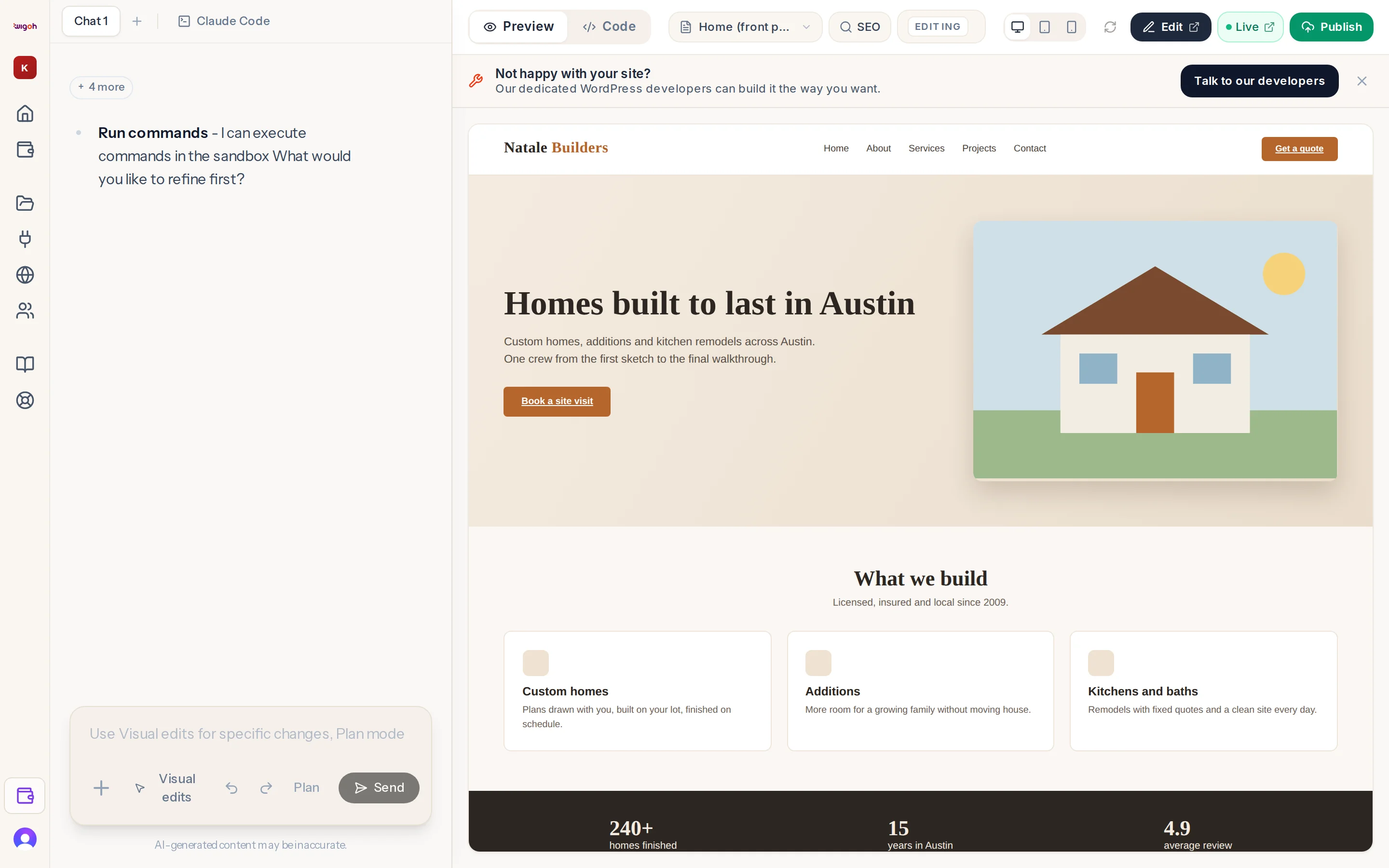
After launch the toolbar shows both:
- The address bar is marked Editing. It shows the editing copy, the site you change in the editor.
- Live, next to it, opens your live site in a new tab.
Publish
After launch the Deploy button becomes Publish.
- Make your changes in the editor.
- Press Publish. A dialog asks Publish your changes to [live address]?
- Press Publish to send your edits to the live site, or Not now to keep editing.
Editing pauses until the publish is done. See When editing is paused. The preview area shows Publishing your changes and these steps:
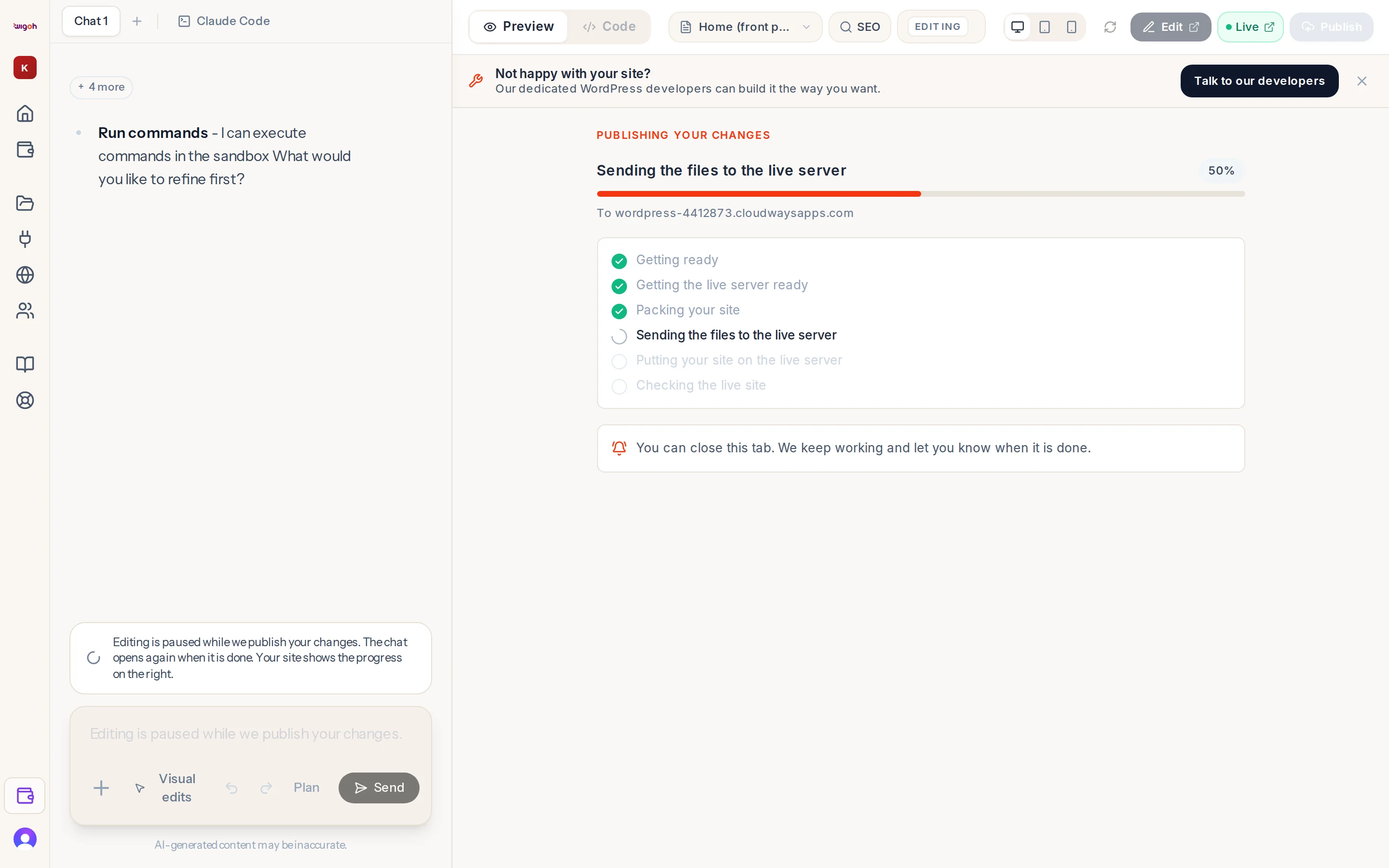
- Getting ready
- Getting the live server ready
- Packing your site
- Sending the files to the live server
- Putting your site on the live server
- Checking the live site
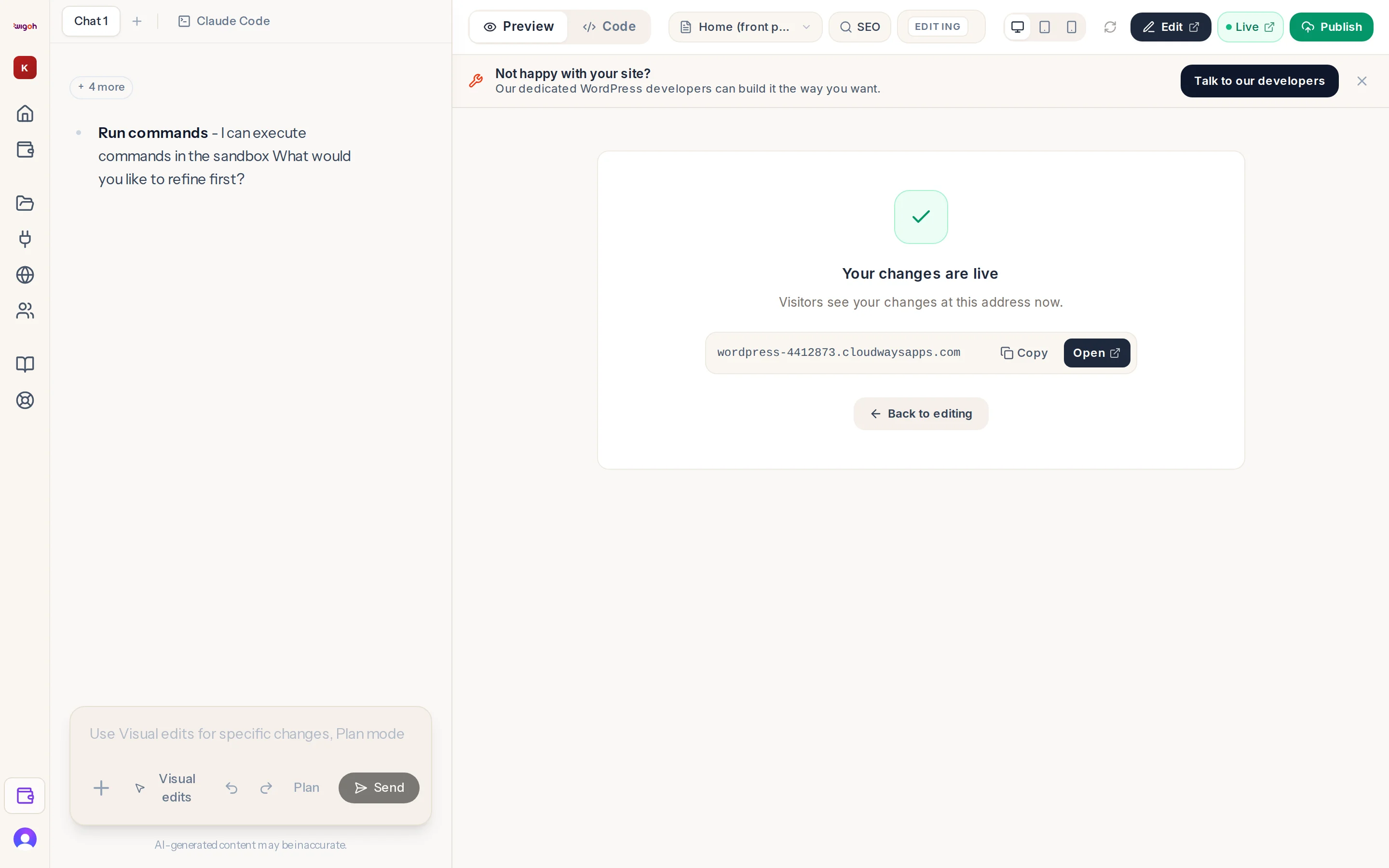
When it is done the panel says Your changes are live, with the live address, Copy and Open.
When Publish waits
Publish cannot be pressed while your edits are still being made. Point at the button to see why:
- Wait for the AI reply to finish. The assistant is still working on a reply.
- Close the Elementor tab first. Elementor is open in another tab. See Why AI edits pause while Elementor is open.
If a publish fails
The panel reads Your changes were not published and Your live site still shows the last version you published. Press Try again.
What publishing keeps
Publishing keeps what your live site made by itself:
- Store orders and refunds.
- Customers' carts and saved payment methods.
- Form entries.
- User accounts and comments.
- Scheduled tasks.
- The stock levels, sales counts and coupon usage of your products and coupons.
A restock made in the editor is added to the live stock, not swapped for it.
If your site has a store, order numbers on the live site start at 1,000,000.
What publishing replaces
Everything else comes from the editing copy. Settings, pages or media changed directly on the live site, outside the editor, are replaced at the next publish. The way to change your site is the editor: make your changes there, then publish.
Your live address
- Without a domain of your own, your site lives on its hosting address, an address ending in
cloudwaysapps.com. - Once your own domain is connected and active, the live address becomes your domain everywhere in Wigoh: in the editor and on the site page. Later publishes keep using it. See Connecting a domain you own.