The editor overview
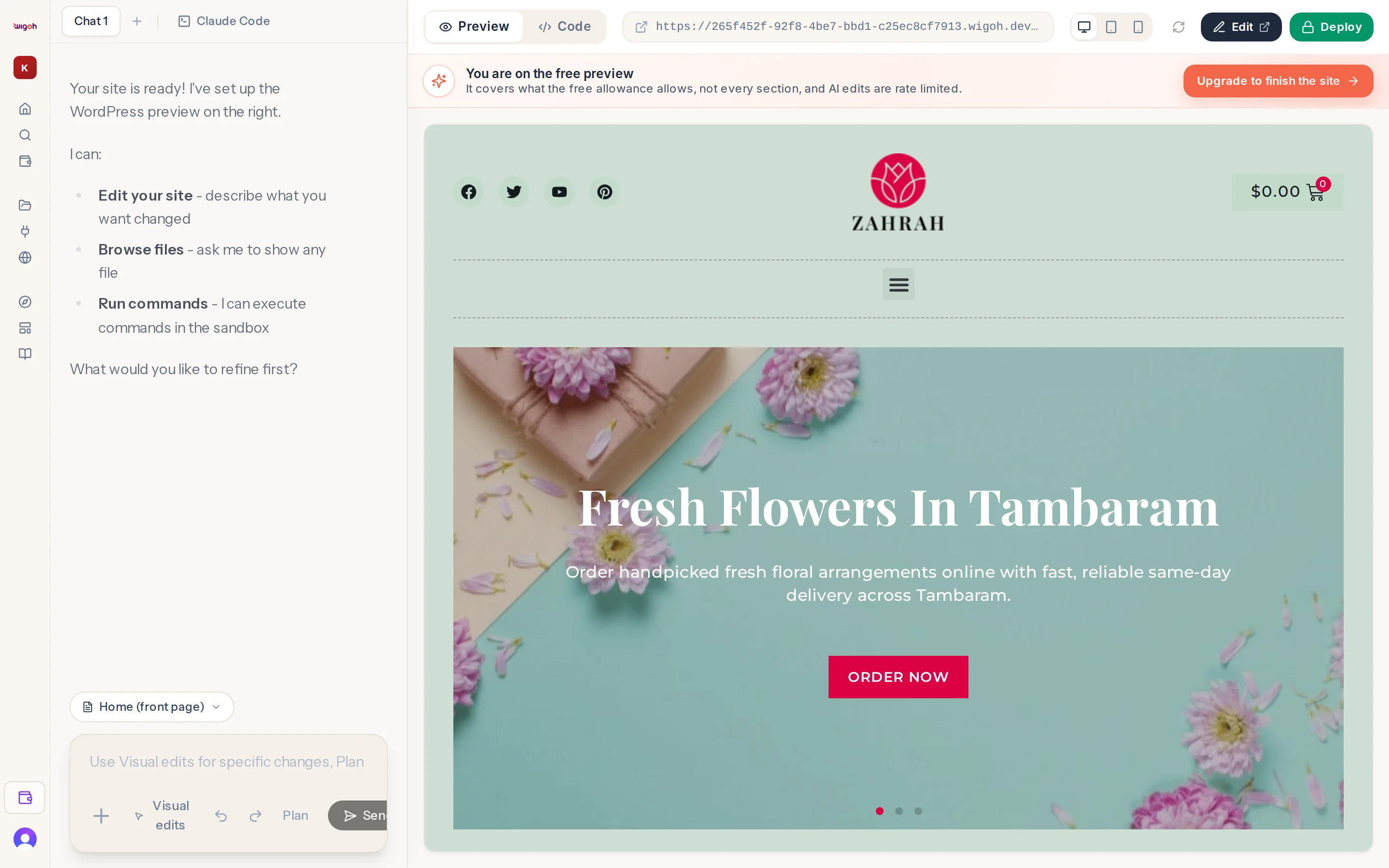
The editor is the screen at /edit. Every finished site opens here, whether it came from a migration, a redesign, a build from scratch, a blank sandbox or a connected WordPress site.
Two panels
- Left, the chat. Talk to the assistant. It makes the changes.
- Right, the preview. Your WordPress site, live. It reloads after each change.
What the assistant can do
From its own greeting:
- Edit your site — describe what you want changed.
- Browse files — ask it to show any file of the WordPress site.
- Run commands — it can execute commands in the site's environment.
In practice you describe changes in plain language, point at elements with Visual edits, ask for a plan first with Plan mode, and undo with one click.
The tools, in one table
| Tool | Where | What it does |
|---|---|---|
| Message box | Bottom of the chat | Type a request; Enter sends, Shift+Enter adds a line |
| + | Toolbar under the box | Attach an image from your computer |
| Visual edits | Toolbar | Click an element in the preview to target it |
| Undo / Redo arrows | Toolbar | Step the page back or forward, no AI involved |
| Plan | Toolbar, right | Ask for a plan before changes are made |
| Code toggle | Toolbar, right (when available) | Switch the preview to the code view |
| Send / Stop | Toolbar, right | Send the request, or stop a running one |
| Page switcher | Preview toolbar | Choose which page, post, product or template the preview shows |
| Chat tabs | Top of the chat | Separate conversations for separate tasks |
| Preview toolbar | Top of the preview | Preview/Code, device sizes, refresh, Edit, Deploy |