Visual edits (select an element)
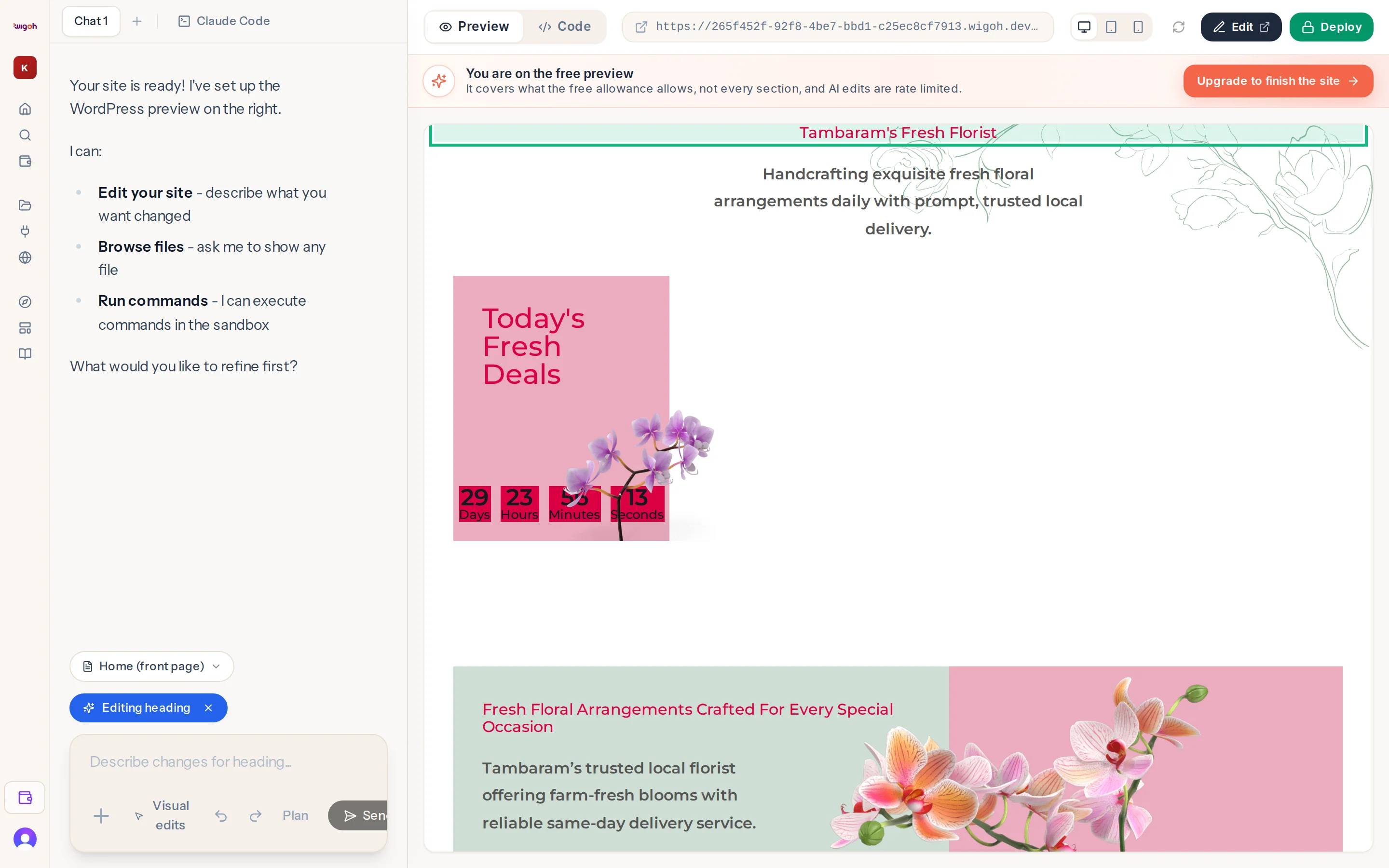
Visual edits lets you click the thing you want to change.
How to use it
- Press Visual edits in the toolbar under the message box. It turns blue.
- Move over the preview; elements highlight. Click one.
- A blue chip appears above the message box: Editing heading (or image, button, container and so on). Selection mode turns off by itself.
- Type the change, for example "Make it dark green and bold", and send.
- The chip clears after the request is sent.
To drop a selection without sending, press the × on the chip.
What the selection tells the assistant
The element's identity, its type, its text and which document it lives in (the page itself, the header or the footer). The assistant treats it as context: this is the element I mean. Your words still decide what happens.
Selecting across the header and footer
Selection works on elements in the header and footer as well as the page body. The assistant edits the right template.
When Visual edits is unavailable
The button is greyed out until the preview has loaded. If the preview reloads while selection mode is on, the mode is re-applied automatically.