Watching the build
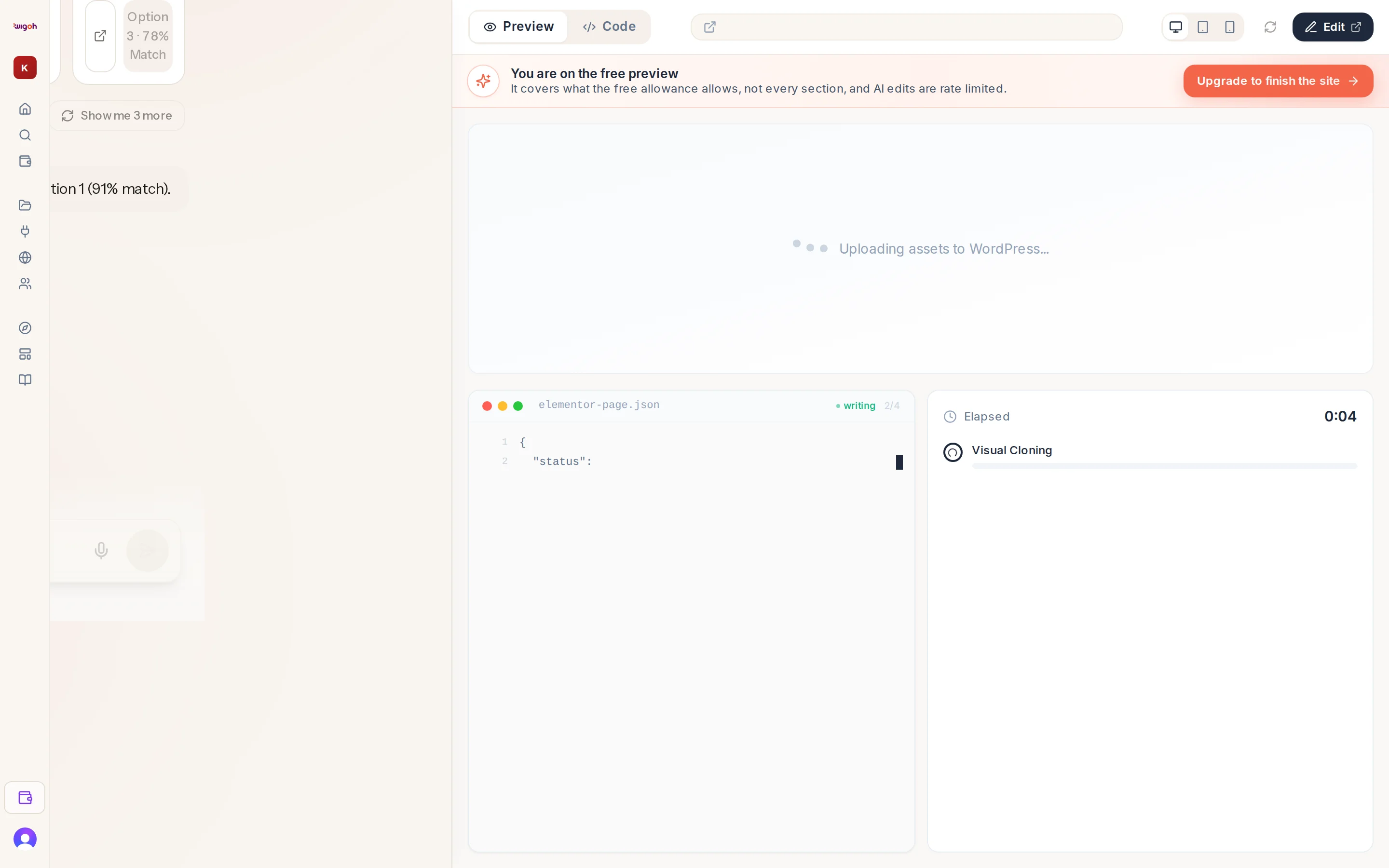
Once a build starts, the chat shows a checklist and the preview panel opens on the right.
The checklist
Each path has its own steps. A spinning circle marks the step in progress, a green tick marks finished steps.
| Website migration | Redesign with a template | Build from scratch |
|---|---|---|
| Provisioning Server | Choosing Your Template | Choosing Your Template |
| Cloning Website | Provisioning Server | Provisioning Server |
| Quality Check | Applying Design Kit | Installing Template |
| Smart Content Writing | Writing Content | |
| Quality Check | Quality Check |
The two template paths wait at the picker before anything is provisioned: a project you abandon at the picker has no server behind it.
If a build fails, a red line under the checklist shows the reason, for example "The build failed.", and the chat adds "Something went wrong… Please try again."
The preview panel
While the build has nothing to show yet, the panel plays a short animated summary of the migration. As soon as the WordPress site has content, the panel switches to the live preview and reloads itself each time the build changes something.
The panel's toolbar (Preview and Code tabs, device sizes, refresh, Edit, Deploy) is described in The preview toolbar.
Leaving and coming back
Keep the tab open or close it; the build runs on Wigoh's servers either way. The address bar carries your project and build identifiers, so a refresh reconnects to the same build. Returning later shows the Welcome back card, or drops you straight into the running build.
How long it takes
Times vary with the size of the site and the path. The checklist is the honest indicator: while the spinner moves, the build is working.