Your first prompt
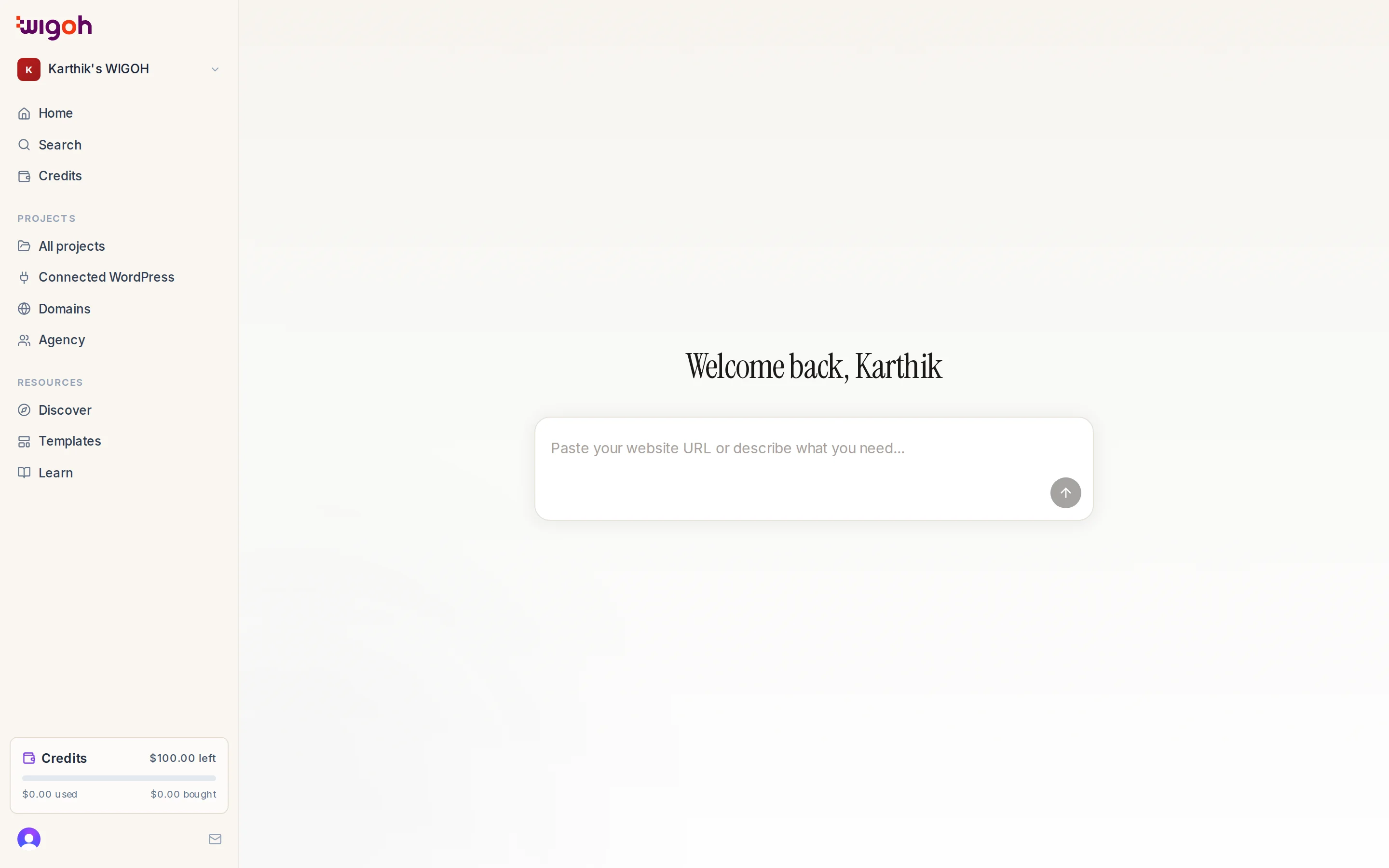
The signed-in home page greets you by name (Welcome back, Alex) and shows one text box. Everything starts there.
What to type
To migrate a site and keep its look, type the address, optionally with a verb:
https://yourbusiness.comMove yourbusiness.com to WordPress and keep the same design
To redesign a site, say so:
Redesign yourbusiness.com with a modern look
To build a new site, describe the business. The more you say, the less the assistant has to ask:
Create a website for a family dental clinic in Austin with online booking, a team page and patient FAQs
What happens when you press Enter
- If your text contains a web address, the app checks that the domain can be migrated. Some domains are blocked; see Blocked websites.
- You are taken to the onboarding chat and your text is sent as the first message.
- The assistant classifies the request and shows a confirmation card.
Tips
- One website address per request. If you include two, the assistant asks which one you mean.
- Bare domains work:
yourbusiness.comis treated ashttps://yourbusiness.com. - The home page remembers your last ten submissions in your browser, but there is no history list in the interface today.