Choosing a template
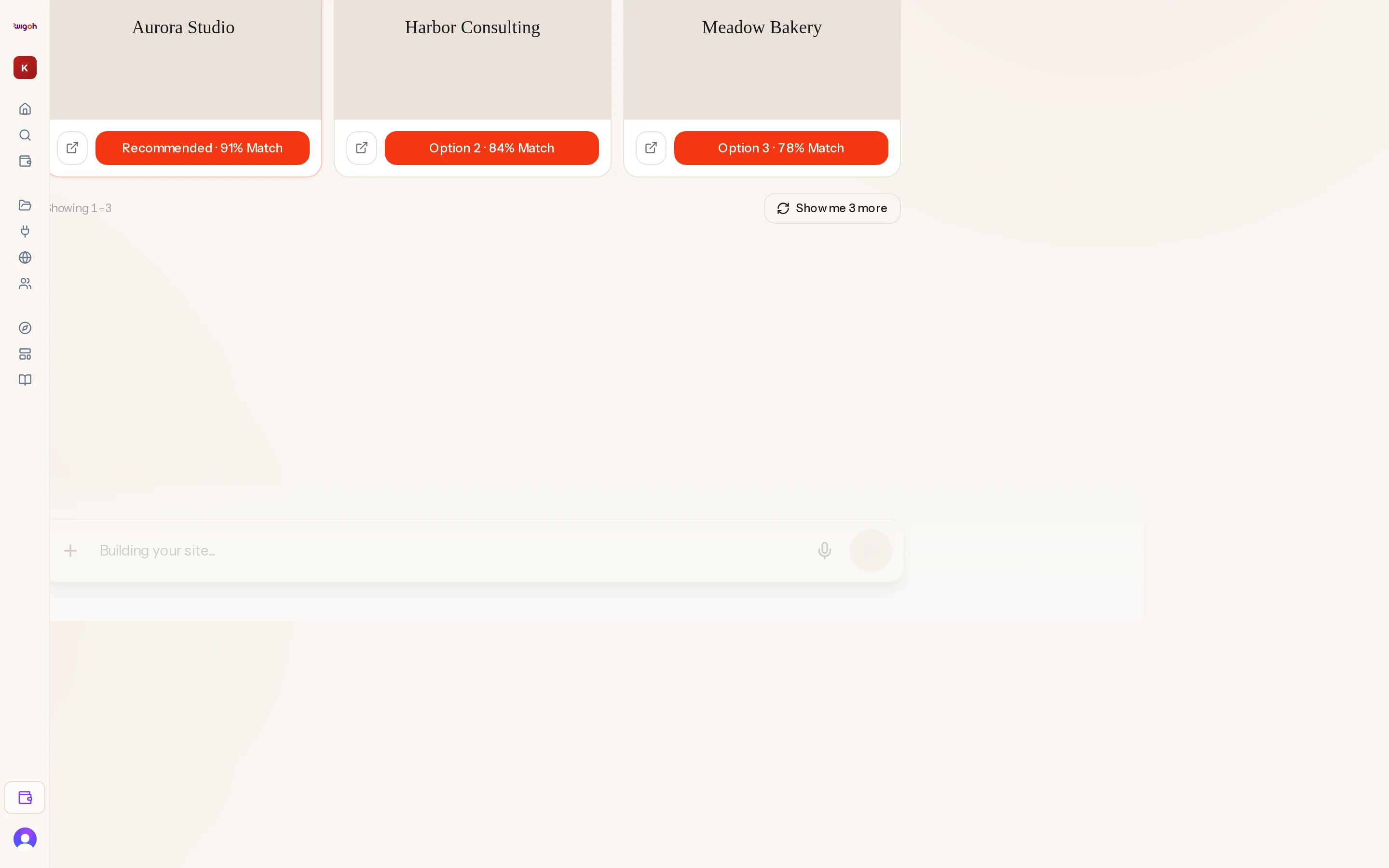
The picker shows three templates at a time. It is the same picker in both template paths: ranked from a screenshot of your site in a redesign, from your description in a build from scratch.
Each card shows
- A cover image of the template.
- A match percentage badge in the corner.
- A preview button (the external-link icon) that opens the template's live demo in a new tab.
- A select button reading Option N · NN% Match. After you press it the button reads Selected.
- In a build from scratch, a Recommended badge on the first card and a button reading Recommended · NN% Match. It is Wigoh's pick; any card can be chosen.
Above the cards
In a redesign, a small red note, Is this the right screenshot?, appears when Wigoh captured a screenshot of your site. Hover it for the explanation: some sites block automated screenshots, and if the preview does not look right the site restricted access.
Below the cards
- Show me 3 more loads the next three matches. When the library is exhausted you see That is every template we have for your site.
- Back returns to the previous three.
- A counter such as Showing 4–6 of 12 tells you where you are.
Selecting
Press the option button. The chat records your choice ("I've selected Option 2 (87% match).") and the build continues with Provisioning Server: your WordPress site is created only now, once a template is chosen. The picker only accepts a selection while it is the latest card in the chat.
If the template cannot be installed
Occasionally a template turns out to be unusable during installation. The build pauses and the chat shows the picker again with a different set of matches. Pick another; see When a template is unusable.